You've probably tried throwing a product image into a model and asking it to swap in a premium background.
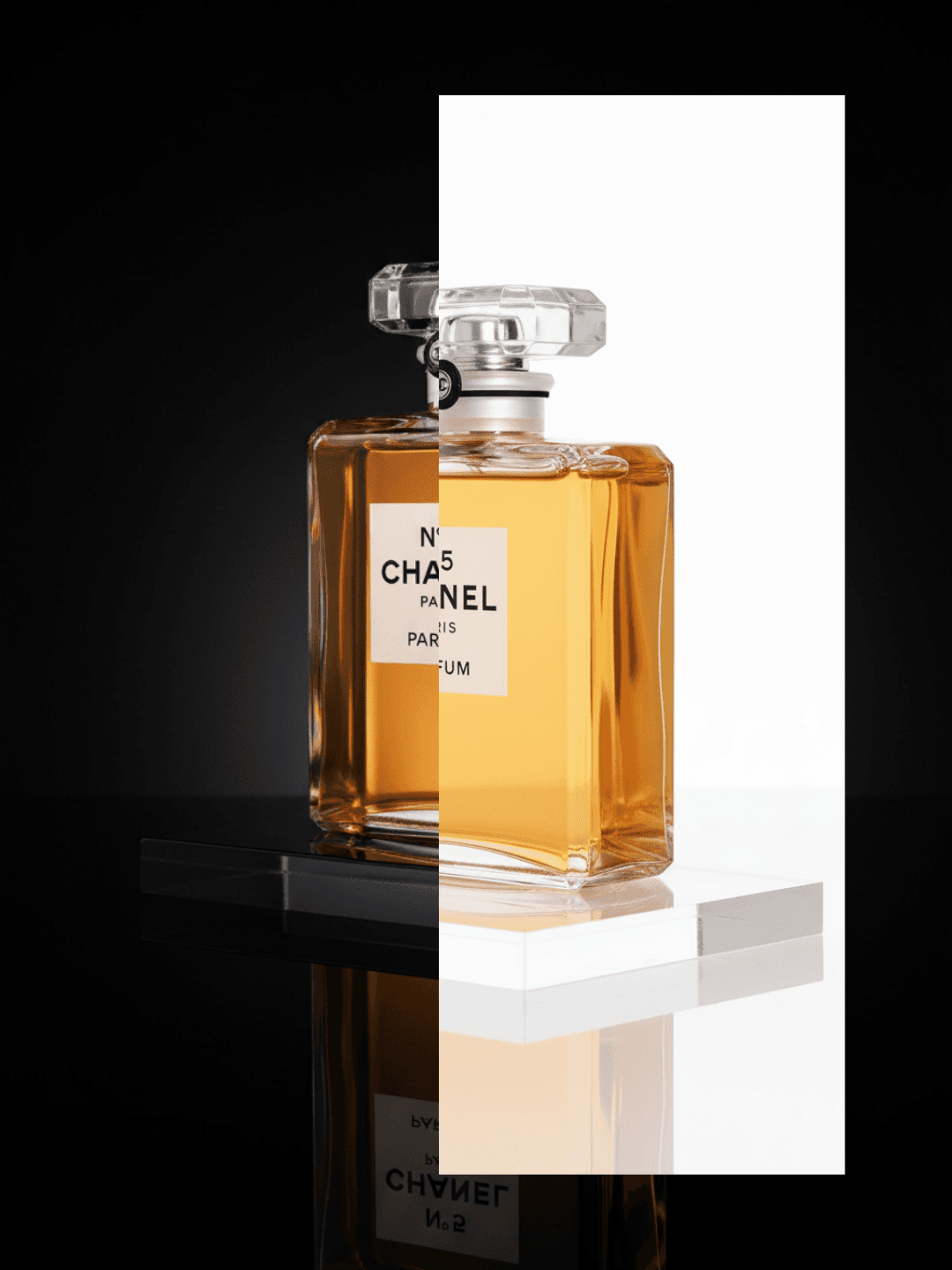
The result usually isn't premium - it looks pasted on: fuzzy edges with dirty halos, shadows that don't match the main light source, flattened textures, and lost details.
This isn't about writing better prompts. You're doing an edit with hard constraints: the product should stay unchanged, the background should change dramatically, and the product needs to align with the new background's lighting, color temperature, and reflections. If any of these three things are off, human eyes immediately notice it looks fake.
Quick answer (30-second version)
Background swaps look fake usually not because of aesthetics, but because three things aren't aligned: edges, lighting, material reflections. A more stable approach isn't writing longer prompts—it's splitting the process into controllable steps:
- First, make the product an editable base: clean edges, remove background residue, and lock a do-not-change constraint (structure, texture, logos).
- Then write staging in studio language: use camera angle, main light direction, surface material, prop density, whitespace as executable constraints instead of abstract adjectives.
- Finally, composite the final image: merge product + staging in the same lighting and spatial relationship.
Scope: as of 2026-01, focusing on e-commerce hero/secondary image background swaps and the common failure mode where outputs look pasted on rather than photographed.
Efficiency reference: As a rough production benchmark, workflow-based batching can turn 100-SKU background swaps into a task measured in tens of minutes (including selection), while fully manual Photoshop work for the same volume is often measured in many hours. The difference comes from reusability: once the workflow structure works, subsequent runs mostly become input swaps.
1. Why does your background swap always look pasted on?
The realism of e-commerce hero images often comes from three details:
First is edges. Only products with clean edges can integrate into any background.
Second is light. If the main light source direction, intensity, and shadow shape in the background completely mismatch the original product image, human eyes immediately see it as fake.
Third is material. Glass, metal, and glossy plastics especially depend on environmental reflections. When the background changes but reflections don't, it breaks immersion.
So doing a background swap in one shot is often unstable. A better strategy is to split it: first make the product a clean, editable asset, then generate backgrounds based on clearer staging descriptions.
Which product types work better:
| Product Type | Stability | Notes |
|---|---|---|
| Hard non-reflective (plastic, fabric) | Most stable | Clean edges are enough |
| Metal, glossy | Medium | Need to specify reflection constraints |
| Glass, transparent | Harder | Must include highlights and refraction in prohibitions |
| Soft textiles (clothing) | Medium | Wrinkles and edges easily get altered |
2. How to stabilize background swaps without OpenCreator? (4 transferable solutions)
Solution 1: Clean cutout first, then background
Don't chase the final image right away. First make the input product into editable assets: pure white background, clean edges, even lighting.
This step has only one goal: prevent the model from casually redrawing the product when the background changes.
Solution 2: Describe backgrounds in studio language, not abstract adjectives
Words like premium, aesthetic, and Instagram-style give the model very low information density.
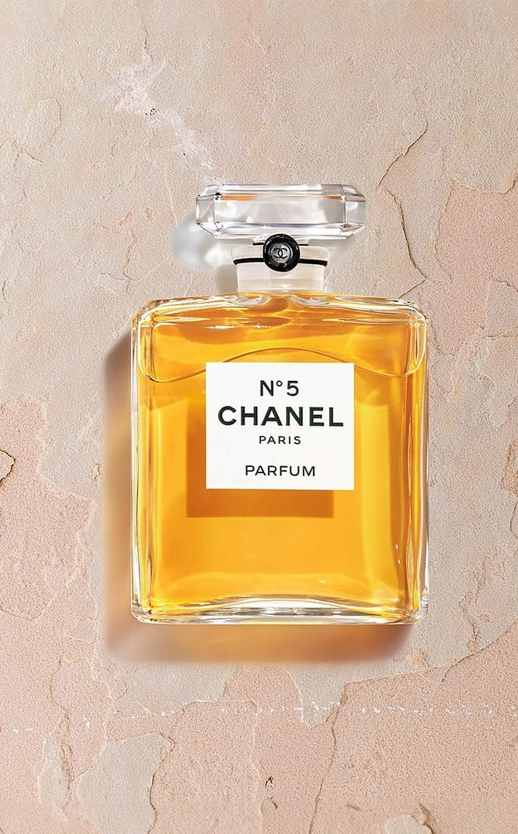
A more stable approach is to describe the scene in photography language that's executable: overhead or eye-level camera, which side the main light comes from, whether the surface is matte stone or wood grain, whether props should appear and how many before stealing focus. When you specify these conditions clearly, the model has a chance to align lighting and spatial relationships.
Solution 3: Split one generation into plan first, then generate
If you ask the model to complete imagine scene + generate final image in one step, it easily loses control on product details.
A more stable approach is to first have the model output 3-6 staging plans (each with angle, lighting, props, composition), then select one to generate images.
Solution 4: Prioritize product-unchanged editing constraints
As long as you accept one fact: the product is the hero, then many prompts can be more explicit.
For example, you can directly specify: product shape, logo, text unchanged; texture and details must be clearly visible; no added decorations, no structural changes. Constraints don't need to be long, but must be specific and verifiable.
3. Why is being able to do it not enough - and why you ultimately need workflows
If you only occasionally do 1 image, manual trial and error is fine.
But once you start doing e-commerce at scale, you quickly face three realities: the same SKU needs multiple background versions (different scenes/platforms), the same product set needs consistent lighting and style, and what worked this time needs to be reusable by the team, not just existing in someone's intuition.
OpenCreator's advantage isn't better at drawing - it's making this into a stable process: what goes in each step, what comes out, which step to fix when something goes wrong, without starting over each time.
4. What does this workflow actually do? (Product Background Swap breakdown)
This workflow can be summarized in one sentence:
First make the product into clean, editable assets, then have GPT generate multiple studio staging plans, finally use image-to-image to composite product + staging into final images.
Atom 1: Image Input
Input determines the ceiling.
Stable inputs usually meet three conditions: clear subject with minimal occlusion, stable angle (avoid extreme perspectives that make proportions hard to align), sufficient resolution to see material details.
Atom 2: Image to Image (Product cleanup/clean cutout)
This step's goal is to isolate the product to a clean background with crisp edges and more studio-like lighting.
It's asset preparation before background editing, making subsequent steps more stable.
Atom 3: Image Describer (Extract product details)
Use a vision model to clearly describe product features: material, shape, color, details.
This layer's value is reducing drift caused by under-specified product details.
Atom 4: Text to Text (Generate 6 staging plans)
This step isn't writing copy - it's writing studio staging plans.
It outputs multiple direction options. What matters isn't how flowery the adjectives are, but whether each plan specifies angle, lighting, style, props, and composition in an executable way. That's how you produce a consistently styled set instead of random draws.
Atom 5: Text Splitter
Split long text into 1-6 segments for generating images one by one.
Atom 6: Image to Image (Generate finals)
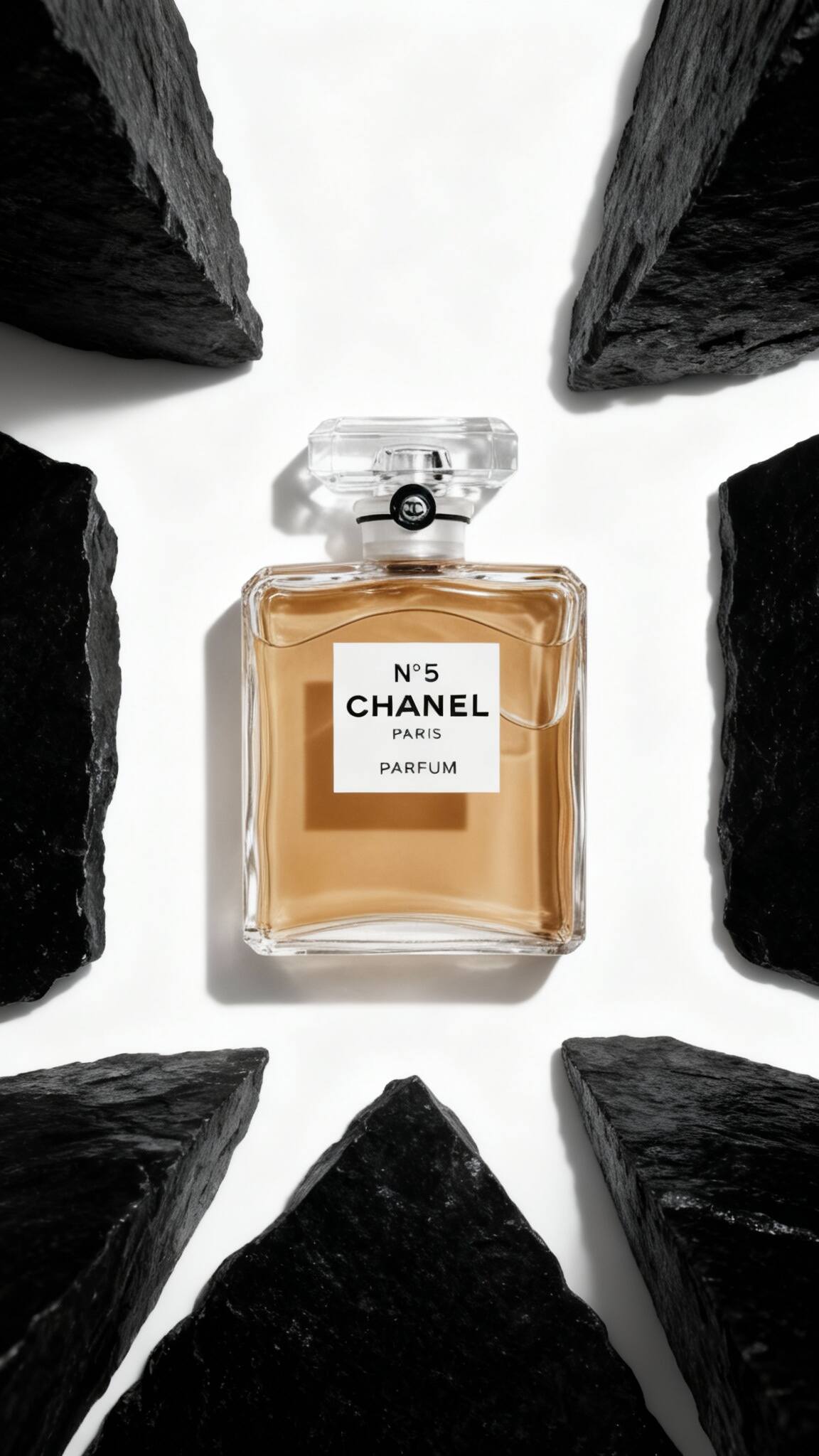
Composite the clean product image with a staging plan into final hero images.


5. To look more like commercial studio shots, prioritize these three things
5.1 Write material reflections into staging plans
If your product is glass, metal, or glossy plastic, write reflections and highlights as hard constraints: environmental reflections should be soft, no unreasonable specular highlights, shadows should ground naturally with consistent direction.
5.2 Keep the same product set consistent
To create a series, the simplest method is to first lock a staging language (angle, lighting, surface material), then only vary small elements (like props or background color). This gives you different versions within the same system rather than reinventing aesthetics for each image.
5.3 Turn the scene into a reusable template
If you've found a staging plan that works especially well for your brand, save that plan as your own SOP.
Swap only the product afterward, without reinventing the background each time.
6. Next steps to turn this into reusable production capacity
If you want background swaps to be more stable, split your goal into three sequential actions: first make products into clean editable assets, then write staging in executable photography language, finally solidify this approach into a workflow so you can reuse it across SKUs.
To get started directly, search for Product Background Swap in OpenCreator's template page, run through it once, then gradually solidify it into your own background library.
FAQ
Why does my background swap always look pasted?
Check three things first: are edges clean, is shadow direction consistent, are material reflections reasonable. If any one isn't aligned, human eyes immediately see it as fake.
Can transparent/highly reflective materials be done?
Yes, but you need to write reflections and highlights as hard constraints (no unreasonable specular highlights, shadows ground naturally with consistent direction), and try to make the product base clean and controllable first.
Should I fix the prompt or the input image first?
Most of the time, fixing the input is easier: make the product subject clear, edges clean, material details visible. Once the base is stable, prompts can work stably.
Does background swap change the product itself?
If the process is done right, no. The key is to standardize the product in the first step, and repeatedly include do-not-change constraints (logo, structure, material) in subsequent steps.
How to keep multiple images style-consistent?
First lock a staging language (angle, lighting, surface material), then only vary small elements (like props or background color). This gives you different versions within the same system rather than reinventing aesthetics for each image.